Why your keyboard sounds are a security signal (and how to quiet them)
Acoustic side‑channel attacks use the sound of your keystrokes to infer what you’re typing. In 2023, researchers showed a deep‑learning model could identify laptop keystrokes with 95% accuracy from a nearby phone and 93% over Zoom audio—no malware required. That’s a wake‑up call for anyone who types sensitive info during remote meetings. (arxiv.org)
This isn’t brand‑new—early work in 2004 already proved different keys have distinct acoustic signatures—but modern mics and AI have turned a lab curiosity into a practical risk. A recent 2025 survey of acoustic side‑channels confirms the threat has accelerated with deep learning and ubiquitous conferencing apps. (research.ibm.com)
Below is a practical, evidence‑backed plan to “sound‑harden” your setup—reducing what an eavesdropper (human or model) could infer from your typing. We’ll cover switch sound profiles, keycaps, noise damping, desk mats, mic placement, and app settings, then finish with a quick at‑home acoustic fingerprint test your typing site can host.
---
The quick risk check: are you a noisy typist?
- If people often comment on your keyboard during calls, you’re leaking a lot of audio features.
- Loud, sharp transients (clicks) are easier for models to classify than soft, low‑frequency thocks.
- RTINGS’ lab testing suggests sub‑50 dBA average loudness is a good benchmark for a quiet board. If you don’t know your level, assume a clicky board is “loud” and a scissor or silent‑mechanical board is “quieter.” (rtings.com)
---
Sound‑hardening your keyboard: physical fixes that work
1) Choose calmer switch sound profiles
- Prefer linear or tactile “silent” variants over clicky switches. For example, CHERRY’s MX Silent line adds internal damping to minimize operating noise—without external O‑rings. If you love mechanical feel but not the chatter, these are designed for you. (cherry.de)
- Consider scissor‑switch office boards for the quietest baseline. Independent tests report average loudness in the mid‑30s to mid‑40s dBA for the quietest models. (rtings.com)
2) Pick keycaps that lower pitch
- PBT keycaps typically sound deeper and less sharp (“thockier”) than ABS; thicker caps help further. That lower pitch is less conspicuous and often less classifiable. (rtings.com)
3) Tame bottom‑out noise with O‑rings (or similar dampers)
- Soft O‑ring dampeners on the keycap stem cushion the final 0.2–0.4 mm of travel, reducing the “clack” from bottoming out—one of the most distinctive sounds in recordings. (support.wasdkeyboards.com)
4) Decouple vibrations from the desk
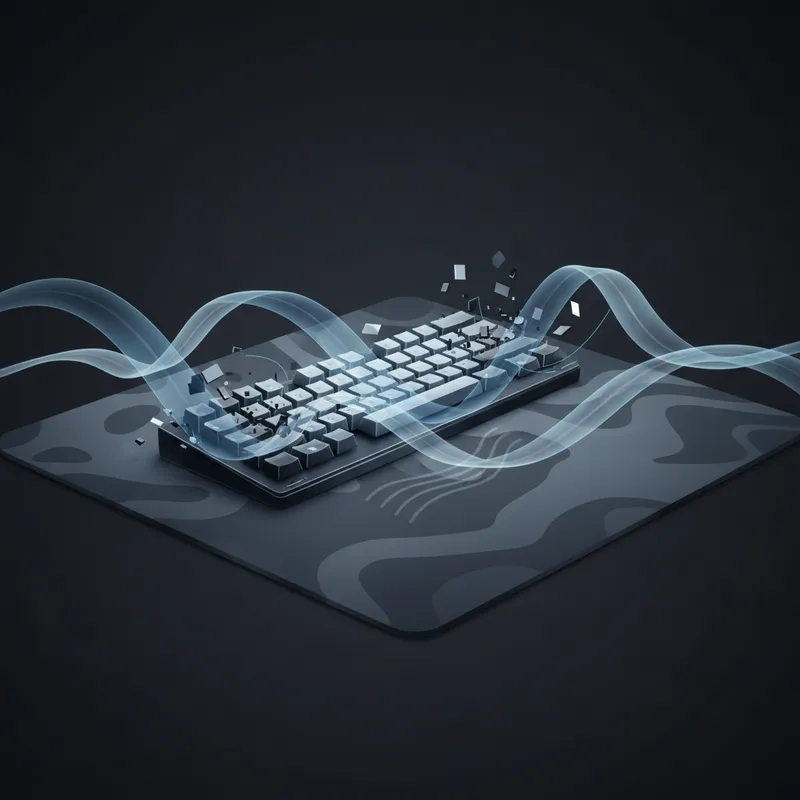
- A desk mat or anti‑vibration material under your keyboard reduces structure‑borne noise that otherwise reflects off hard surfaces into your mic. Viscoelastic pads (e.g., Sorbothane) are specifically designed to absorb shock and vibration. (sorbothane.com)
Pro tip: Don’t forget your mouse—mouse clicks are another “tell.” A mat under both keyboard and mouse helps.
---
Mic placement and settings: reduce what your microphone “hears”
5) Place the mic for maximum rejection
- Use a directional mic (cardioid pattern), position it close to your mouth (often 2–4 inches for broadcast‑style dynamics) and slightly off‑axis—aimed toward your mouth, not the keyboard. Orient the mic so its angle of maximum rejection points at the keyboard. This improves signal‑to‑noise and reduces keystroke pickup. (shure.com)
- If you can’t change mics, simply moving a laptop mic farther from the keyboard (with an external webcam/mic) reduces relative keystroke level.
6) Turn on built‑in noise suppression in meeting apps
- Zoom: Set Suppress background noise to High to better remove typing transients. Zoom publicly notes detecting/removing keystrokes. (lawtech.pepperdine.edu)
- Microsoft Teams: Use Noise suppression = High (or Auto); this targets non‑speech background sounds. (support.microsoft.com)
- Google Meet: Enable Noise cancellation; Google highlights keyboard‑typing removal. (torontomu.ca)
7) Use OS‑level “voice isolation” when available
- macOS: Mic Mode > Voice Isolation filters surrounding noise in supported apps (FaceTime and many third‑party calling apps). (support.apple.com)
- Windows 11 on Copilot+ PCs: Windows Studio Effects > Voice focus isolates your voice using on‑device AI. (support.microsoft.com)
8) Add AI denoise if you need more
- NVIDIA Broadcast (Windows, RTX GPUs) removes loud keyboard typing and other noises with a single toggle. (nvidia.com)
- Krisp (Windows/macOS): App‑level noise cancellation specifically lists “keyboard and mouse clicks.” Consider “Best Noise Cancellation” mode if your CPU can handle it. (help.krisp.ai)
- Open‑source: RNNoise‑based tools (e.g., NoiseTorch on Linux) provide real‑time suppression using a compact neural net. (github.com)
9) Meeting hygiene
- Use push‑to‑talk so you’re muted while you type. Zoom supports “hold Space to temporarily unmute” on the desktop client. (sites.psu.edu)
---
Why this matters most in remote meetings
Deep‑learning attacks don’t need pristine audio. Researchers showed strong accuracy from Zoom call recordings—meaning your everyday meeting pipeline can become an unintended sensor. Combined with typical background quiet and predictable typing patterns (URLs, names, or short passwords), your keystrokes become surprisingly reconstructible. Keep sensitive typing off‑mic, or apply the mitigations above before your next call. (arxiv.org)
---
Try this at home: the Acoustic Fingerprint Test (for your typing site)
Offer readers a 2‑minute test you can host right on your typing‑test website:
1) What it does
- Records 30–60 seconds of normal typing with the user’s consent through the browser mic, then aligns audio to keystrokes. It computes simple features (peak level, spectral centroid, spectral roll‑off, zero‑crossing rate) per key and visualizes how distinct each key’s sound is on their setup.
2) The outputs
- A “confusability score” (higher is better) showing how many keys sound similar to each other.
- A heatmap of keys that stand out acoustically.
- A short, personalized checklist: e.g., “Try PBT caps,” “Add O‑rings,” “Move mic 6 inches left,” “Enable Voice Isolation,” etc.
3) How to run safely
- Prompt users to avoid typing secrets; provide a built‑in pangram/random text. Store only aggregate features locally (no raw audio) unless users opt in for research. Re‑run after each change to see measurable improvement.
This isn’t an attack tool—it’s a privacy checkup that helps users validate the impact of noise damping and settings in minutes, in line with the research literature on acoustic side‑channels. (mdpi.com)
---
A fast, practical recipe (save this)
- Switches/keycaps: Silent linear/tactile switches + thick PBT caps. Add O‑rings if you bottom‑out. (cherry.de)
- Noise damping: Put a desk mat under the keyboard and consider anti‑vibration pads if your desk is boomy. (sorbothane.com)
- Mic discipline: Place a directional mic close and off‑axis; aim its rejection at the keyboard. (shure.com)
- Software: Enable Zoom/Teams/Meet suppression; on macOS use Voice Isolation; on Windows 11 use Voice focus; add Krisp or NVIDIA Broadcast if needed. (lawtech.pepperdine.edu)
- Meetings: Use push‑to‑talk so you’re muted while typing. (sites.psu.edu)
---
Bottom line
Acoustic side‑channels are real, practical, and increasingly accurate in everyday conditions—but you can stack the odds in your favor. Quiet the source (switches, caps, damping), control the path (desk/mic placement), and clean the signal (app/OS/AI suppression). Then run an acoustic fingerprint test to confirm your keystroke privacy is improving. That’s sound‑hardening, 2026‑style. (arxiv.org)